


A unified view of the customer journey is a must for launching powerful targeted marketing campaigns. The customer profiles feature in Adobe Campaign gives marketers this critical data to create persuasive personal campaigns. Data residing in multiple applications and databases are merged in Adobe Campaign to create comprehensive profiles for each customer.
Two methods are used to import data in Adobe Campaign: API and batch file processing. In the former, a SOAP client is used to call in-built APIs within Adobe Campaign. The latter method is, however, more common and convenient, as this allows marketers to collect a considerable amount of data from different sources and process them before feeding them to the marketing automation system. This also saves them the trouble of setting up API calls to the system, especially if they do not have a technical background.
There is a tiny hitch though. Adobe Campaign only allows import of data in text, CSV, Tab, or XML formats. But that is not always the case with the data received from upstream data sources.
Format Matters
If the customer data file is in .CSV format, it only takes a step to initiate the import. Just add a “Data loading” activity in the workflow and the data will be extracted and imported to Adobe Campaign. Next, add an “Update data” activity to update the required table with the records that are read from the .CSV file.
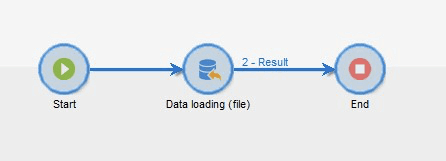
Data from some upstreams will be in JSON as JSON is better at showing hierarchical and relational data. As of today, there is no out-of-the-box activity in Adobe Campaign to parse JSON data.
The JavaScript activity in Adobe Campaign can be used to parse JSON files and create corresponding CSV files.
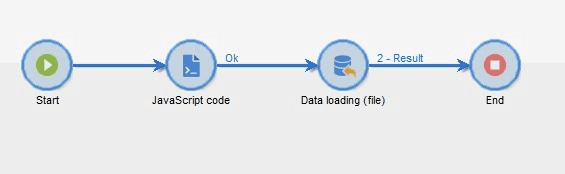
Parsing JSON Using JavaScript Activity
1. Inside the JavaScript activity, define and initialize the following variables:
- inputFilePath to store the file path of the feed file.
- addKeys initialized to “true”, to determine whether the CSV file needs to have a header. This will be discussed later on.
- delimiter to define the desired delimiter of the output file.
In this tutorial, the delimiter is set as a comma since the expected output is a .CSV file. If you need the output in a different file format, you need to assign the corresponding delimiter. For example, if you need the output in a tab-separated file, you need to assign ‘\t’ as the delimiter variable.
2. After defining the variables, call the convertToCSV function.
1var inputFilePath= "/<your path here>/recipients.json"
2var addKeys = true;
3var delimiter = ",";
4convertToCSV(inputFilePath, addKeys, delimiter);
It is a good practice to pass the three variables declared above (inputFilePath, addKeys, and delimiter) as arguments to the function, for ease of reusability of code.
Now let us start writing the convertToCSV function.
3. Define file objects
- jsonFile – with read access.
- csvFile – with write access.
The file object ‘csvFile’ is created and opened in the path ‘outputFilePath’ which points to a CSV file with the same filename, and in the same location as that of the JSON file.
1function convertToCSV(inputFilePath, addKeys, delimiter) {
2  var jsonFile = new File(inputFilePath);
3  jsonFile.open("r", File.CODEPAGE_UTF8);
4  instance.vars.outputFilePath = inputFilePath.replace('.json','.csv');
5  var csvFile = new File(instance.vars.outputFilePath);
6  csvFile.open("w", File.CODEPAGE_UTF8);
7
8//conversion logic starts
9//to be added
10//conversion logic ends
11
12 jsonFile.close();
13 csvFile.close();
14}
4. Add a conversion logic to convert the JSON to CSV in the function.
Each line in the JSON file is read using the ‘readln()’ method inside a while loop. Inside the loop, each line is appended to a variable ‘fullFile’, so that we get the whole JSON content as a string in the variable ‘fullFile’. This string can now be parsed to a variable ‘jsonObj’ using the ‘JSON.parse()’ method.
1//conversion logic starts
2  var line = '';
3  var fullFile = '';
4  while(line = jsonFile.readln()) {
5    fullFile = fullFile + line;
6  }
7  var jsonObj = JSON.parse(fullFile);
In the example shown below, JSON data has been considered as an array of objects.

While looping through each JSON object, we need to fetch the keys and values of each recipient. Write the fetched data to csvFile using the ‘writeln()’ method.
1for (var obj in jsonObj) {
2    var keyVal = getKeysAndValues(jsonObj[obj]);
3    var allKeys = keyVal["keys"];
4    var allVals = keyVal["vals"];
5    if (addKeys == true) {
6      csvFile.writeln(allKeys.join(delimiter));
7      addKeys = false;
8    }
9    csvFile.writeln(allVals.join(delimiter));
10  }
11  //conversion logic ends
Notice that the first line of the CSV file contains the keys of the objects, separated by the specified delimiter. This is because the ‘addKeys’ variable was initialized to true. So, if you need a header for your CSV file, make sure you set ‘addKeys’ to true.
5. Define custom function ‘getKeysAndValues()’.
A custom function ‘getKeysAndValues()’ has also been used to separate the keys and values of the JSON objects. The function is shown below:
1function getKeysAndValues(obj) {
2  var keys = [];
3  var vals = [];
4  for (var item in obj) {
5    keys.push(item);
6    vals.push(obj[item]);
7  }
8  return {"keys":keys,"vals":vals};
9}
That is pretty much everything you do to parse a simple JSON file to a CSV file.
But what if the JSON data is more complex and contains nested objects/nested array objects, like the one below?

This complicates things!
Inside the array, there is a nested/multi-level JSON object. We need to convert this multi-level JSON to a single-level JSON. To do this, you can make use of the below script.
1function flattenObject(ob) {
2  var toReturn = {};
3
4  for (var i in ob) {
5    if ((typeof ob[i]) == 'object') {
6      var flatObject = flattenObject(ob[i]);
7      for (var x in flatObject) {
8        toReturn[i + '.' + x] = flatObject[x];
9      }
10    } else {
11      toReturn[i] = ob[i];
12    }
13  }
14  return toReturn;
15}
As you can see, we have made use of recursion here. We iterate through the object and check if the value in the current iteration is an object. If it is an object, we recursively call the function again and fetch the object inside. For values fetched this way, we slightly alter the key. We combine the key from the main object with the value’s original key from the child object and separate them with a dot.
With this function, all that’s left to do is to add this single line to flatten the objects, before calling getKeysAndValues() in convertToCSV():
1flatObj = flattenObject(jsonObj[obj]);In our example, the two objects should be converted to the objects shown below.
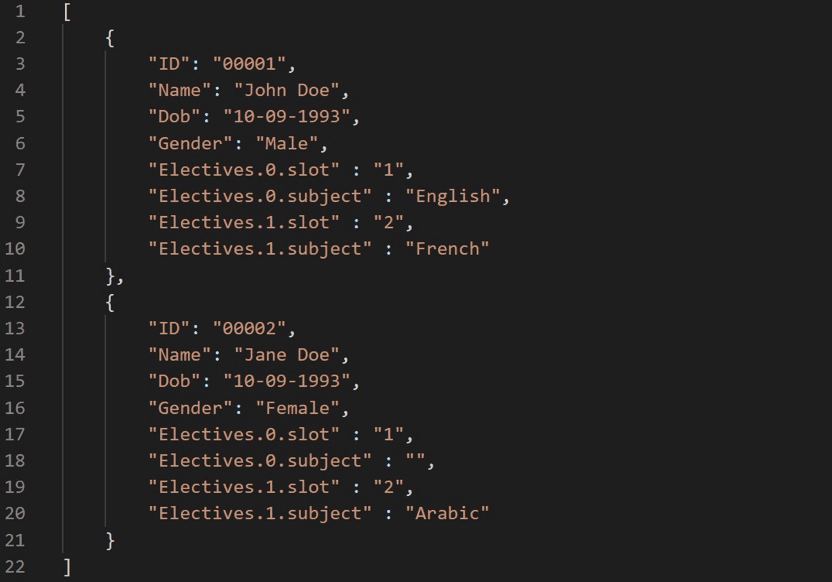
The converted CSV will look like this:

Note: One drawback of our method is that the keys should be the same and in the same order for all objects throughout the JSON file. As we are taking keys from only the first object for writing the header for the CSV file, key-value pairs in all other objects are expected to be in the same order.
Do refer to the entire code for conversion.
1var inputFilePath= "/<your path here>/recipients.json"
2var addKeys = true;
3var delimiter = ",";
4convertToCSV(inputFilePath, addKeys, delimiter);
5
6function convertToCSV(inputFilePath, addKeys, delimiter) {
7  var jsonFile = new File(inputFilePath);
8  jsonFile.open("r", File.CODEPAGE_UTF8);
9  instance.vars.outputFilePath = inputFilePath.replace('.json','.csv');
10  var csvFile = new File(instance.vars.outputFilePath);
11  csvFile.open("w", File.CODEPAGE_UTF8);
12  //conversion logic starts
13  var line = '';
14  var fullFile = '';
15  while(line = jsonFile.readln()) {
16    fullFile = fullFile + line;
17  }
18  var jsonObj = JSON.parse(fullFile);
19
20  for (var obj in jsonObj) {
21    var flatObj = {};
22    flatObj = flattenObject(jsonObj[obj]);
23    var keyVal = getKeysAndValues(flatObj);
24    var allKeys = keyVal["keys"];
25    var allVals = keyVal["vals"];
26    if (addKeys == true) {
27      csvFile.writeln(allKeys.join(delimiter));
28      addKeys = false;
29    }
30    csvFile.writeln(allVals.join(delimiter));
31  }
32  //conversion logic ends
33
34 jsonFile.close();
35 csvFile.close();
36}
37
38function getKeysAndValues(obj) {
39  var keys = [];
40  var vals = [];
41  for (var item in obj) {
42    keys.push(item);
43    vals.push(obj[item]);
44  }
45  return {"keys":keys,"vals":vals};
46}
47
48function flattenObject(ob) {
49  var toReturn = {};
50
51  for (var i in ob) {
52    if ((typeof ob[i]) == 'object') {
53      var flatObject = flattenObject(ob[i]);
54      for (var x in flatObject) {
55        toReturn[i + '.' + x] = flatObject[x];
56      }
57    } else {
58      toReturn[i] = ob[i];
59    }
60  }
61  return toReturn;
62}
That is all you need to do to convert a JSON file to CSV file. Not only JSON, whatever the format of the file, it is always convenient to convert the file to a CSV/TSV file before you feed it to the Data Loading activity. And any such conversion is possible with JavaScript code activity.
Adobe Campaign is indeed a behemoth of a marketing automation solution that can be harnessed to solve the toughest of campaign challenges. If the learning curve bothers you or if your efforts are not paying off as well as expected, we as a seasoned marketing automation consultant can help you surmount them.