

The conversation around AI-assisted design usually focuses on how quickly a tool can generate a screen. In enterprise product design, the real challenge is: how do you keep dozens of screens consistent?
Every frame has to speak the same design language and behave as part of a single product. Yet generative AI tends to treat each screen as a standalone creation, making its own choices about layouts, components, and interactions.
At QBurst, we address this challenge through Design as a Service (DaaS)—our AI-assisted delivery model that pairs structured requirements with strict design rules before a single screen is drawn.
What’s in this article:
- Why cross-screen inconsistency is a problem with AI-generated designs
- How QBurst’s Design as a Service (DaaS) pairs user stories with a Design Recipe in Figma Make
- Five upfront rules for tokens, navigation, components, states, and missing inputs
- Real-world results showing how DaaS cut UI design effort by 69% and 48% across client builds
- Where human design judgment remains essential
How the Two-Track DaaS Pipeline Works
In DaaS, nothing is left to a single ad-hoc prompt. To keep generative tools from guessing, function and form are specified on two parallel tracks and combined after both are validated by humans:
- Track 1: Function (User Stories): As detailed in Part 1 of this series, our analysts turn raw client inputs into a Business Requirements Document (BRD) and state-by-state user stories. These define every screen’s data, logic, and user flows.
- Track 2: Form (The Design Recipe): Designers translate brand guidelines, competitor analysis, and existing screens into a Design Recipe—a strict, structured specification governing every visual and interaction rule. AI design agents help draft the initial recipe; senior designers review and own every rule inside it.
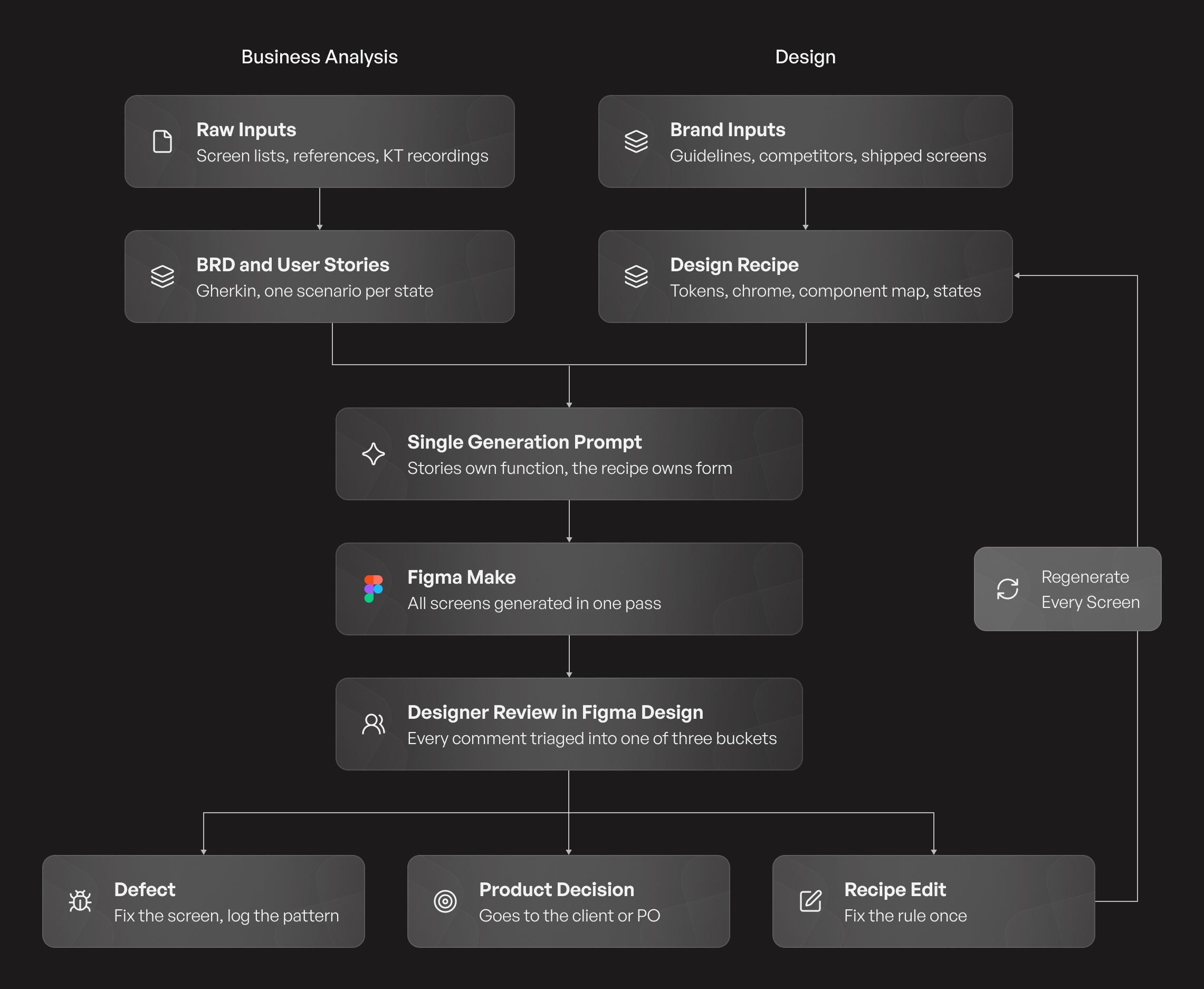
This division of ownership keeps the pipeline clean. When both validated inputs merge into a single prompt, Figma Make generates an entire multi-screen flow in one pass with a shared visual hierarchy rather than a collection of disconnected guesses.
Once designers review and refine the output, engineering teams pull the approved screens and Figma Make’s generated code directly through Figma’s Model Context Protocol (MCP) server. This shortens clarification cycles and preserves design intent through development.
How Our Design Recipe Stops AI Guesswork
In a conventional project, keeping things consistent comes down to the designer’s memory and a few rounds of review. When an AI design tool generates an entire flow in one go, it fills every blank space in its instructions with a guess. To keep quality from slipping at that speed, we settle five things before we generate a single screen:
- We tag every token by where it came from. We label each color, font, and spacing value as Confirmed (pulled straight from live screens), Inferred (taken from a brand book or an older UI kit), or Designed (created by our team when nothing existed). Without those labels, assumptions can turn into brand rules. Tagging them means that when a client asks why a button is a certain shade, we have the answer ready. If their brand team updates guidelines, we know right away which Inferred values need another look.
- We define shared navigation once. Headers, footers, top bars, bottom navigation, and main action buttons get set up once and inherited everywhere. Describe navigation screen by screen, and the AI will redesign it screen by screen.
- We map user story phrases to exact components. User stories use everyday phrases like "show a breakdown" or "display status." Left on its own, an AI tool grabs whatever widget it loosely connects with those words, creating visual mismatches across flows. Our component map pairs every recurring story phrase with the exact component to use and calls out the common wrong choice right next to it.
- We treat error and empty states as hard requirements. Edge cases usually get pushed to a last-minute polish pass and get cut the moment deadlines tighten. Because our user stories are written in Gherkin (Given / When / Then) with one scenario per state, our Design Recipe mirrors that setup one-to-one. Every data-heavy screen is generated with its loading, empty, error, and offline states already built in.
- We flag missing client inputs instead of letting AI guess. When we are waiting on an icon set or a confirmed brand color, the Design Recipe tells the generator to drop in a neutral placeholder and log the omission in a Gap Register. That register doubles as a focused agenda for our next client call: a short list of decisions only they can make.
DaaS in Action: Results from Real-World Projects
We put DaaS to the test on two very different client projects. On one, it kept 15 screens consistent across multiple brands in a fraction of the usual time. On the other, it exposed a broken user flow before developers wrote a single line of code.
1. Consistent UI Across 15 Multi-Brand Realty Sites
A global real estate developer needed a 15-screen platform for multiple residential communities. Each community needed its own brand colors and styling, yet the underlying product layout and navigation had to stay identical across every site.
Instead of designing each screen manually, our team defined the shared layout grids, navigation, and Header and Footer rules in the Design Recipe upfront. When Figma Make generated the screens, roughly 70% of the first-pass output was structurally ready. Designers reviewed and refined every screen before handoff.
| Design Scope | Traditional Effort | With DaaS | Time Saved |
| 15 responsive screens (web & mobile) | ~180 hours | ~56 hours | 69% |
2. Streamlined Navigation for Merged FinTech Apps
A financial services client wanted to merge two mobile apps—one for personal investments and another for employer-sponsored retirement—into a single unified experience. However, the initial user stories forced customers to answer "Which app are you in?" on the very first screen, splitting every flow downstream into two separate apps under one roof.
Because the Design Recipe kept the visual styling consistent across every generated screen, that structural flaw in the user journey stood out immediately. Instead of trying to patch it visually, we worked with our Business Analysis team to rewrite the stories, making account eligibility a silent background check rather than an upfront question. When Figma Make regenerated the screens, that extra selection step disappeared, leaving a single merged experience the client could test and sign off on before developers started building.
| Design Scope | Traditional Effort | With DaaS | Time Saved |
| Core mobile app (18 screens with states) | 6–8 days | 3 days | 57% |
| Mobile claims flow (29 screens) | 8 days | 5 days | 38% |
| Web claims flow (3 screens) | 2–3 days | 2 days | 20% |
Across the entire engagement, average design time dropped by roughly 48%, compressing the overall design cycle from 2.5 weeks to 1.5 weeks.
What Still Needs a Designer's Eye
AI design tools can assemble layouts and apply styles in a fraction of the usual time. But they cannot judge whether a screen makes sense to the person using it. They may miss a confusing flow, overlook an important action, or fail to catch an accessibility issue. That's where expert designers come in:
- If a component looks wrong across screens, they update the Design Recipe so the fix carries across the product.
- If a user journey needs to change, they revise the user stories first and then update the screens.
- If a screen needs better spacing or clearer wording, they adjust directly in Figma.
It also helps to be realistic about when this approach pays off. Writing a Design Recipe takes time and real judgment upfront, so a three-screen feature will never see dramatic time savings. The payoff shows up on larger products, multi-brand platforms, and ongoing releases where new screens can reuse established design rules.
If you have a complex product backlog and want to move faster without losing design control, our team would love to show you how the DaaS pipeline runs in practice. Reach out to our Experience Design team.